Post in category
- Website installation - introduction 💡
- Installation to known platforms ⭐
- Adding a New Form
- Web Configurator - Field Pairing ⭐
- Web Configurator - Control Elements
- App - field mapping
- 📍 Addresses - settings
- 💼 Companies - settings
- ✉️ E-mails - settings
- 📞 Phone numbers - settings
- 👤 Names - settings
- Deactivating/activating services in a form
- Foxentry Appearance and Behavior 🎨
- Javascript API
- ⚙️ Rest API
- Determining the status of form validation
- Custom processing of validation data - Callbacks
- Cookies 🍪
- How to clear your browser cache
- API Key Expiration
- Shopify
✉️ E-mails - settings
Correctly setting up e-mail address validation is key to successful communication with your customers and to minimizing undelivered messages. In this guide, we'll show you how to set up e-mail fields in Foxentry and what advanced options you can use to block disposable or free webmail addresses.
E-mail groups and recommended settings (best practices)
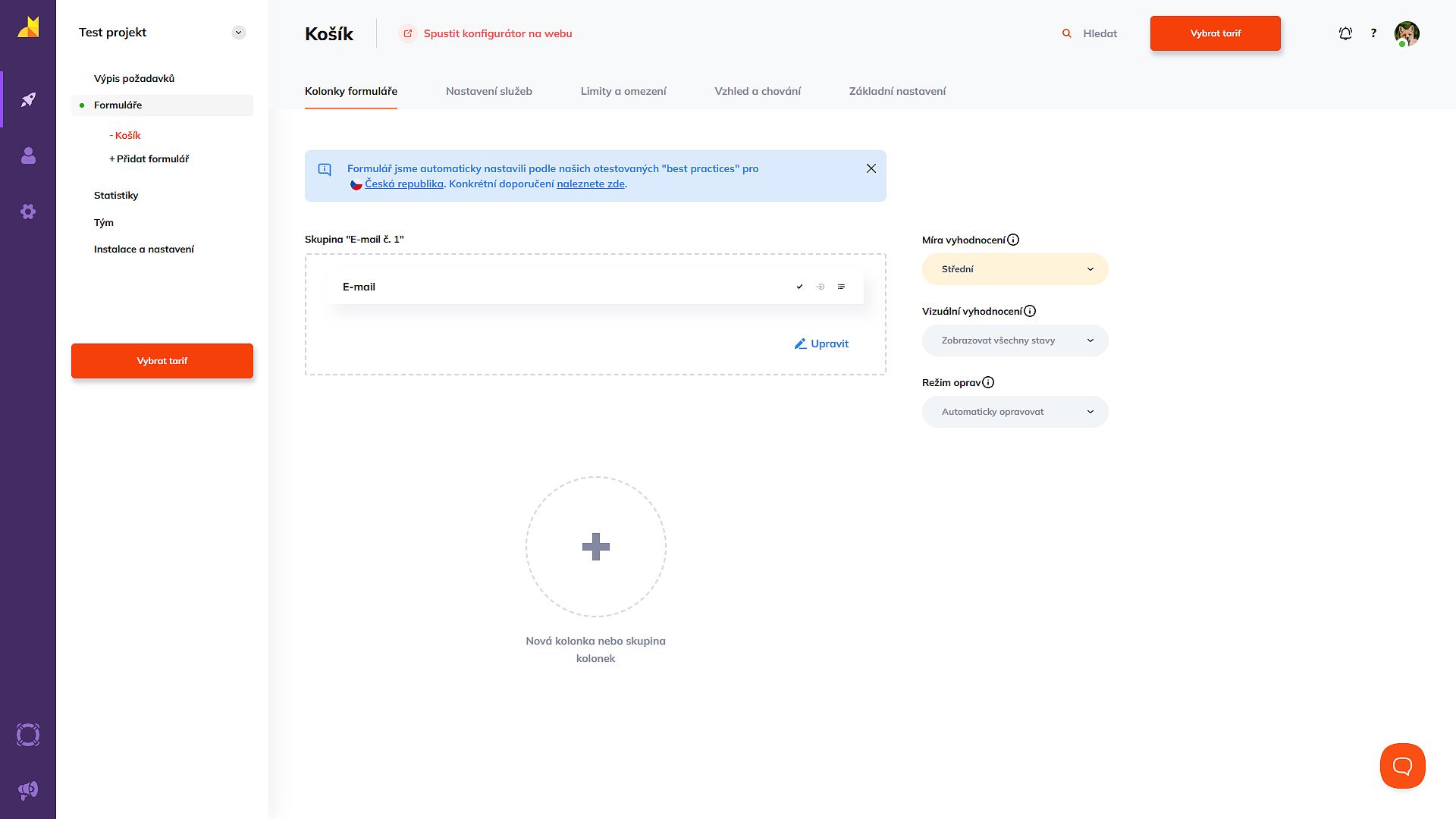
The foundation here, too, is dividing the data into so-called groups. For e-mail, this is typically a group with a single field. Foxentry can offer you an automatic pre-set configuration here as well, based on our tested recommendations ("best practices") for specific markets, which a blue banner above the list of fields will let you know about.
In the right-hand panel, you can set the overall behavior for the whole group:
- Evaluation level: determines how strictly the entered e-mail is checked (minimal, medium, and strict are available). The stricter the setting, the more weight the system puts on the e-mail being written completely accurately, with no typos or non-standard characters. This choice also determines at what deviation, and in what form (color, icon, text), the user sees a warning about an error.
- Visual evaluation: determines whether and how visual states and error messages are shown to users. You can enable all states, limit it to valid/invalid data only, or turn the visualization off entirely.
- Correction mode: defines whether the system should automatically correct obvious typos (e.g. a common domain typo, from "gmial.com" to "gmail.com").
Behavior of a specific e-mail field
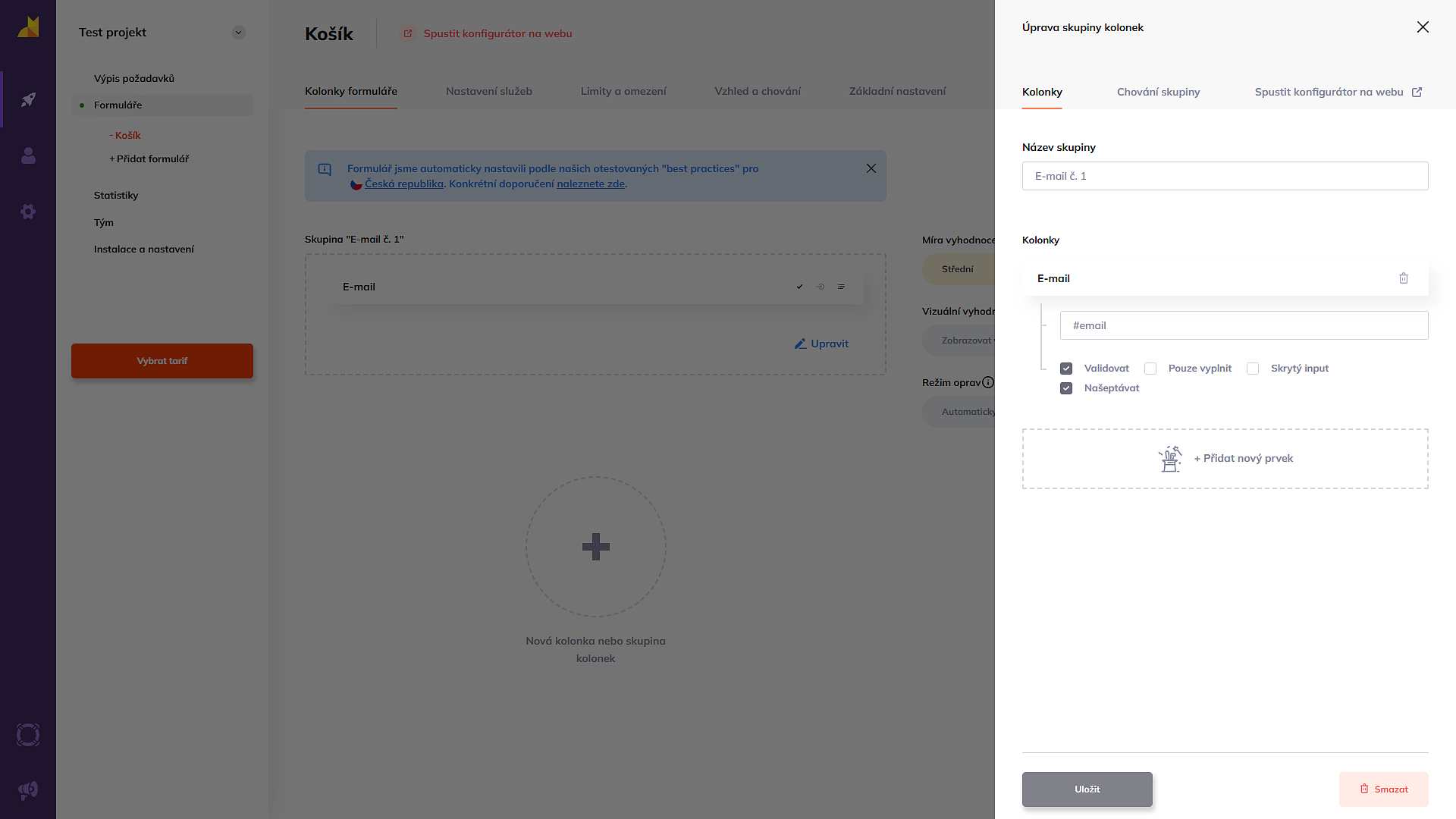
After opening the group (the Edit button), you define the detailed behavior of the e-mail field itself.
- Validate: once an address is entered, it's checked (according to the type of validation you choose in the advanced settings).
- Fill only: the system automatically fills in the field based on a different action, but doesn't perform validation or autocomplete in it itself.
- Autocomplete: suggestions activate while typing. For e-mails, the system automatically suggests the most common e-mail domains in the given country (the country is detected from the user's current IP address). This significantly speeds up how quickly customers can finish typing the rest of the address after the "@" sign.
- Hidden input: an informational label for fields that aren't visible to the user on the website.
Setting options and the depth of e-mail checks
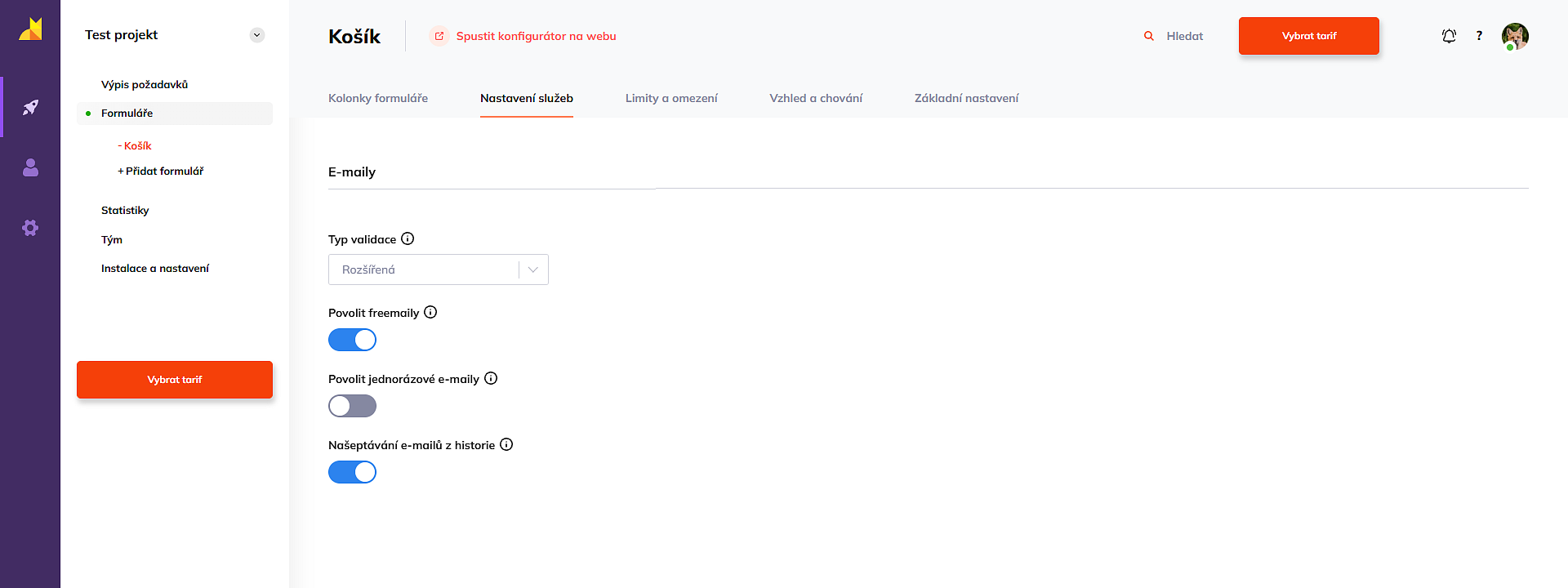
In the Service settings tab, in the E-mails section, you'll find important options for the depth of the check and for restricting what types of addresses you accept from users at all.
E-mail validation type
- Basic validation: the system only checks the format of the e-mail address (whether it has the right number of characters, an "@" sign, a dot, and a valid domain ending).
- Extended validation: besides the correct format, Foxentry also verifies in the background the actual existence of the given mailbox and its ability to actually receive messages. This effectively prevents registrations with non-existent or deactivated e-mails.
Allowed types of e-mail addresses
- Allow free webmail: if you turn this setting off, all common free addresses (such as gmail.com, outlook.com, yahoo.com, etc.) are evaluated as invalid. The system prompts the user to enter a company e-mail instead. This is a great feature especially for purely B2B websites and apps.
- Allow disposable e-mails: if you turn this feature off, the system blocks temporary and disposable mailboxes (so-called disposable or temp mails), which users often use just to download an e-book once or grab a discount. The user is prompted to enter their regular address instead.
Autocomplete history
- E-mail autocomplete from history: a handy feature that, once the user clicks into the field, automatically offers e-mail addresses they've entered on your website in the past. This history is stored in the browser's local storage, so it's tied only to the specific website, and for it to work the user has to consent to cookies in their browser.