

Post in category
- Website installation - introduction 💡
- Installation to known platforms ⭐
- Adding a New Form
- Web Configurator - Field Pairing ⭐
- Web Configurator - Control Elements
- App - field mapping
- 📍 Addresses - settings
- 💼 Companies - settings
- ✉️ E-mails - settings
- 📞 Phone numbers - settings
- 👤 Names - settings
- Deactivating/activating services in a form
- Foxentry Appearance and Behavior 🎨
- Javascript API
- ⚙️ Rest API
- Determining the status of form validation
- Custom processing of validation data - Callbacks
- Cookies 🍪
- How to clear your browser cache
- API Key Expiration
- Shopify
📍 Addresses - settings
Correctly configuring address autocomplete and validation is key to smooth order delivery and minimizing typos. In this guide, we'll show you how to manage address fields in Foxentry and what advanced options you can set up for this service.
Address groups and recommended settings (best practices)
The foundation of correct behavior is dividing address data into so-called groups. A group brings together fields that logically belong together (typically the street and house number, city, and postal code). Foxentry can offer you an automatic pre-set configuration in the administration, based on our tested recommendations ("best practices") for a specific country (a blue banner lets you know when this is available). The system then recommends the optimal evaluation level based on the specifics of that particular market.
In the right-hand panel next to the list of groups, you can set the overall validation behavior for the given address:
- Evaluation level: determines how strictly the entered data is checked (minimal, medium, strict). The stricter the setting, the more weight is placed on the data being entered completely free of errors and typos. This also affects how the warning is displayed (its color, icon, and text).
- Visual evaluation: determines whether visual states and error messages are shown to users at all. You can enable all states, limit it to valid/invalid data only, or turn the visualization off entirely.
- Correction mode: determines how error corrections within the group are handled. You can let the system automatically correct typos, correct only the format, or leave the data untouched and simply offer the user a better-matching alternative.
- Cross-country correction mode: a special setting for cases where you have multiple countries enabled and a user enters information that matches a result in a different country from the one they're currently in.
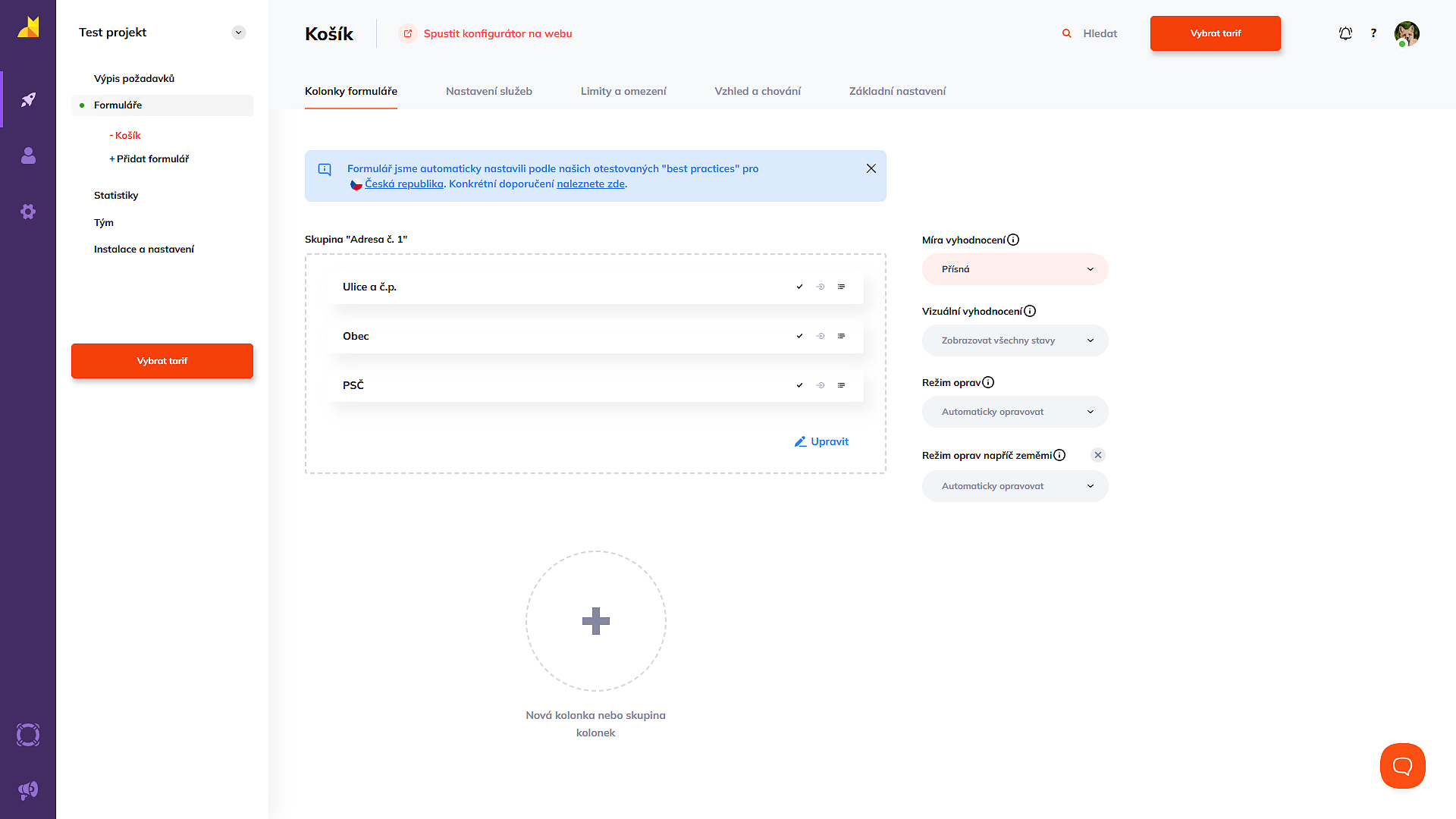
Important rule: if your form contains multiple addresses (e.g. a billing address and a delivery address), you must split them into two separate groups. If you put both addresses into a single group, selecting a street in the delivery address would automatically overwrite the data in the billing address as well.
Behavior of individual fields within a group
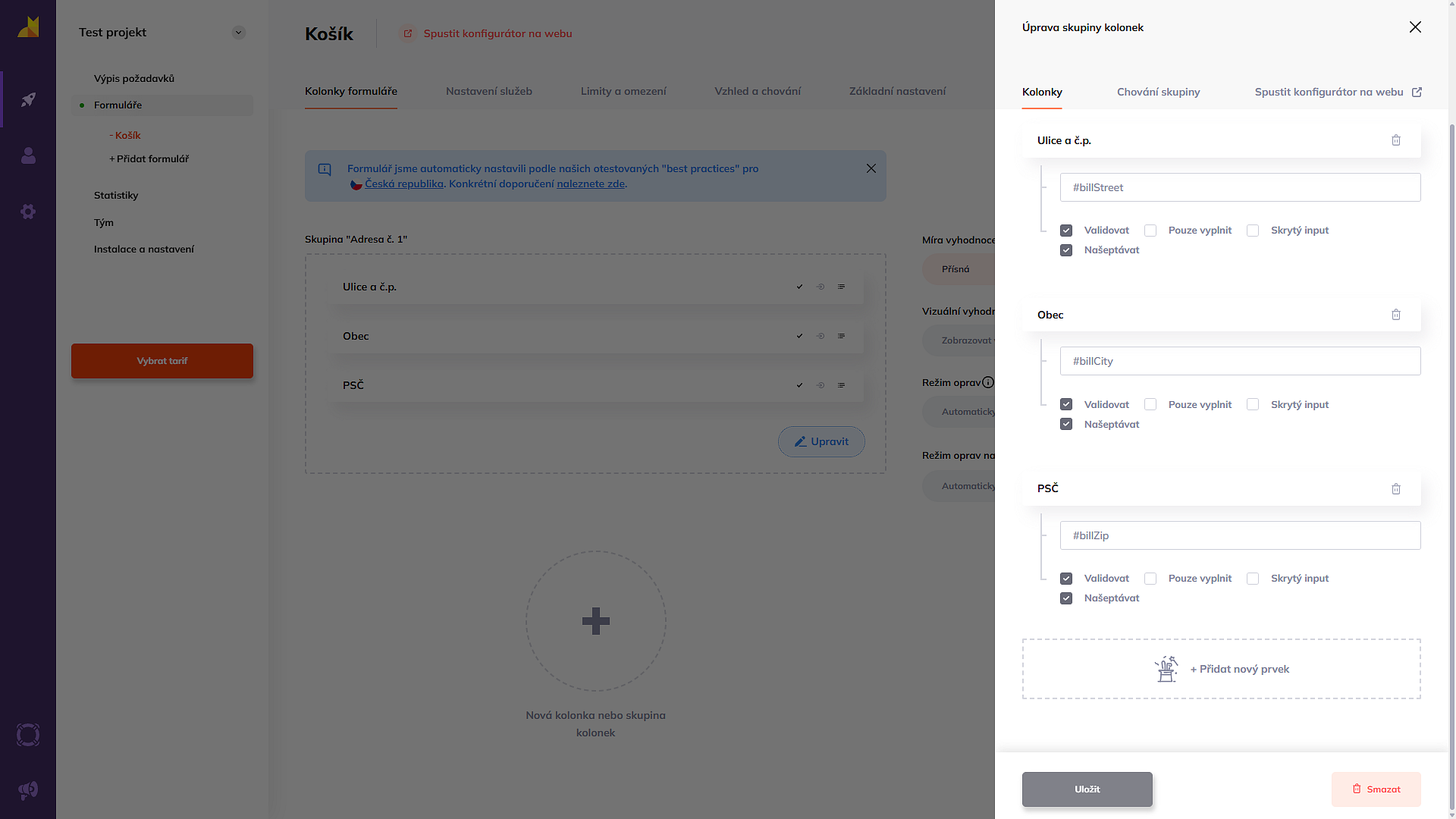
If you open a specific group by clicking Edit, you'll get a detailed list of its mapped fields (e.g. street and house number, city, postal code).
For each individual field, you can use checkboxes to define its behavior:
- Validate: once a value is entered into this field, its correctness is checked.
- Fill only: the system automatically fills in the field based on an autocomplete selection, or once the other fields in the group have been successfully validated (e.g. after manually typing the exact street and clicking away, the system fills in the city and postal code on its own). However, if the user types a value directly into a field set up this way, neither validation nor autocomplete will run on it.
- Autocomplete: typing into this field activates a drop-down with address suggestions.
- Hidden input: an informational label for fields that aren't visible to the user on your website.
Advanced settings for the Addresses service
If you switch to the Service settings tab in the top menu and expand the Addresses section, you'll get access to detailed settings for the autocomplete's own behavior and for the format of the returned data.
Autocomplete options and history
- Number of results in the autocomplete: determines the maximum number of addresses shown to the user at once in the autocomplete drop-down (you can choose a value from 1 to 20).
- Max. number of results from history: the number of addresses shown in the autocomplete that the user has entered at some point in the past (the history is stored in the browser). You can show between 0 and 3 historical entries.
Formatting of results (city, postal code, and country name)
- City format: lets you set the preferred level of detail for the city name filled in after validation. You can choose a minimal notation (only the shortest valid name, e.g. "Vienna"), a basic notation (the city name plus, for cities that are split into numbered districts, the district number, e.g. "Graz", "Vienna 9"), or an extended notation (the city name supplemented with the district and locality, e.g. "Vienna 3 - Landstraße").
- Postal code format: determines how the postal code is filled in after validation. The formatted notation follows the given country's own convention (for example, Swedish addresses use a space, e.g. "114 35", while other countries use a hyphen instead, e.g. Portugal's "1000-001"). The unformatted notation, by contrast, always writes the postal code as one continuous string with no spaces or punctuation (e.g. "11435").
- Country name format: determines the form in which the country name is returned and filled in after successful validation. You can choose a two- or three-letter ISO code (Alpha-2 / Alpha-3), the full or abbreviated local name in the local language (e.g. Österreich / Ö), or the international name in English (e.g. Austria / Aut.).
Filtering and the address database
- Address database: determines which countries' address databases are allowed to be used for autocomplete and validation in your form.
- Filtering of autocomplete results: this setting affects which results the autocomplete offers when some fields (e.g. the postal code) have already been filled in. You can set the system to strictly narrow the results (the Filter option only offers results from the given postal code), or simply rank them higher (the Prioritize only option). Filtering can also be turned off entirely.
- Accept a delivery office name as a valid city: allows addresses that list the name of the local delivery/post office in the city field, instead of the official municipality name, to still be evaluated as valid. For example, an address naming a small village's nearest delivery office and an address naming the village itself would both be accepted as correct variants.
- Suggest partial results: when this feature is enabled, the autocomplete can show other kinds of data besides exact, final address points. For example, after typing a few characters, the user might be offered the name of an entire street. Once they click it, the autocomplete narrows the selection and shows only the specific house numbers on that street.
Geolocation and automatic completion
- Automatically fill in the address based on the user's location: this feature uses our Localization service. When the user clicks into an address field, the browser asks them for permission to determine their precise location (a browser pop-up appears). If the user agrees, the system searches their immediate vicinity (a small radius) and offers precise addresses for automatic completion. The service works better on mobile devices, so the settings let you restrict it accordingly (e.g. turn on Mobile only).
- Prioritize results by geolocation: unlike the previous feature, this setting requires no confirmation in the browser. Foxentry quietly takes the user's approximate location into account based purely on their IP address, and starts prioritizing addresses from their presumed vicinity in the autocomplete. Note that this determination is less accurate, since the location derived from an IP address can differ from the user's actual physical location.

