

Post in category
- Project Types 💡
- Creating a new project
- List of Projects
- Deleting a project
- Add a member
- 🌐 WEB - Description of the Project Home Dashboard
- 🌐 WEB - Project Settings
- 🌐 WEB - Limits and Enabling Individual Services
- 🌐 WEB - Forms
- 🌐 WEB - Topping Up Your Plan
- 🌐 WEB - Statistics
- ⚙️ API - Description of the Project Home Dashboard
- ⚙️ API - Project Settings
- ⚙️ API - Generating an API Key
- ⚙️ API - Documentation
- ⚙️ API - SDKs
- ⚙️ API - Topping Up Your Plan / Credit
- ⚙️ API - Statistics
⚙️ API - Description of the Project Home Dashboard
Updated this month
In this article
When you open an API project in the Foxentry administration, you'll find yourself on its home dashboard. It serves as the primary overview of the current traffic and technical state of your integration. In this part of the manual, we'll describe the individual elements you'll find here.
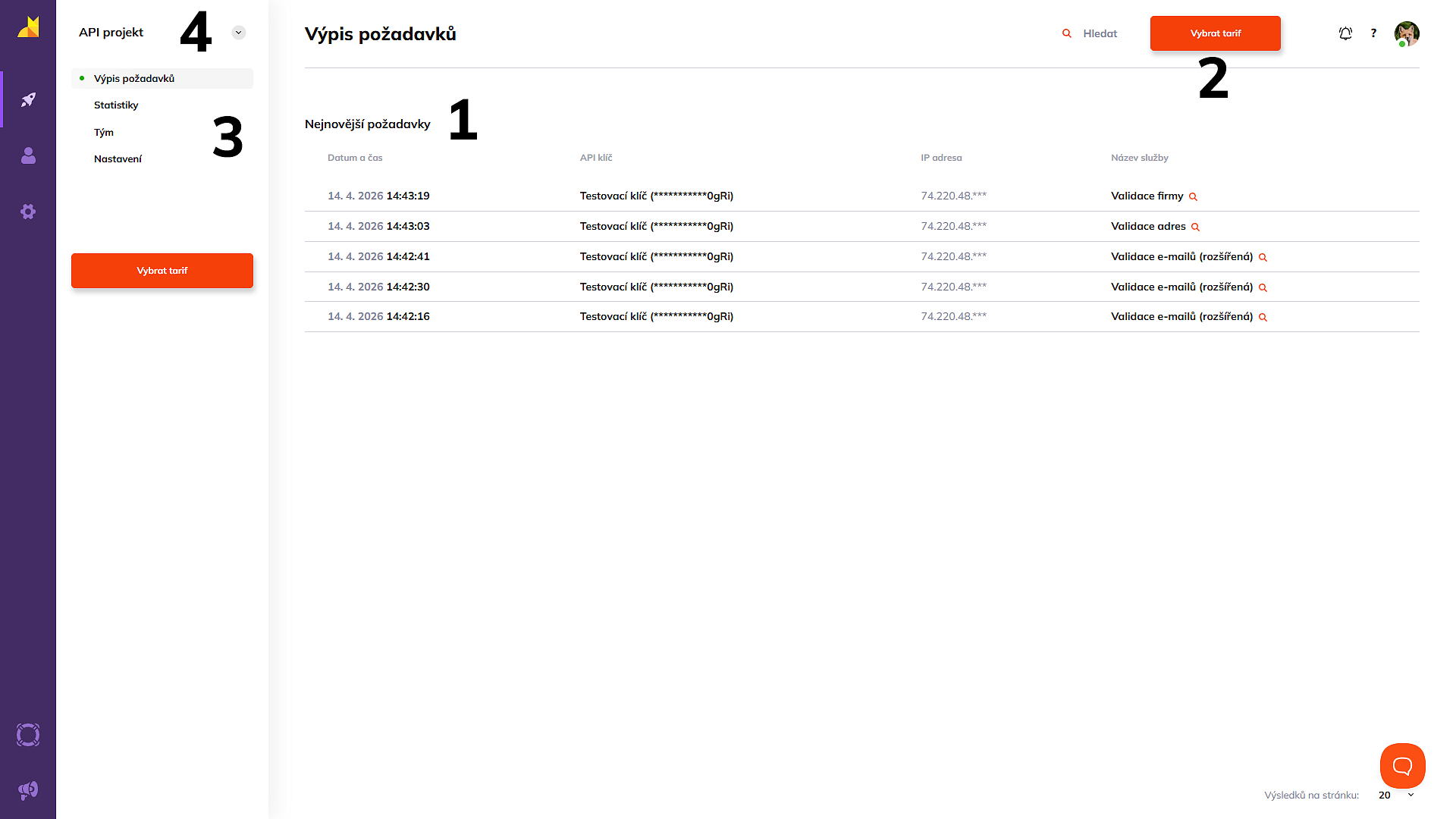
Description of the main dashboard elements
- Latest requests: the dominant part of the screen is made up of a real-time list of requests, where each row represents a single query to the API (you can see the time, the API key used, the IP address, and the service name),
Request detail
Clicking the magnifying glass icon next to a service's name in the table opens a side panel. There you'll find the complete technical log of the request – the exact data sent by your system (the request) and the complete response from Foxentry (the response). Sensitive data is anonymized in the log for your security.
- Choose plan button: in the top-right corner, you'll find a quick way to order or upgrade a plan directly for this specific project,
- Left main menu: contains the navigation for the API integration, where you'll find the list of requests, statistics, team management, and the settings section for managing keys and limits,
- Project switcher: clicking the name of the current project in the top-left lets you switch instantly between website and API projects across your entire account.
