

Post in category
- Project Types 💡
- Creating a new project
- List of Projects
- Deleting a project
- Add a member
- 🌐 WEB - Description of the Project Home Dashboard
- 🌐 WEB - Project Settings
- 🌐 WEB - Limits and Enabling Individual Services
- 🌐 WEB - Forms
- 🌐 WEB - Topping Up Your Plan
- 🌐 WEB - Statistics
- ⚙️ API - Description of the Project Home Dashboard
- ⚙️ API - Project Settings
- ⚙️ API - Generating an API Key
- ⚙️ API - Documentation
- ⚙️ API - SDKs
- ⚙️ API - Topping Up Your Plan / Credit
- ⚙️ API - Statistics
🌐 WEB - Forms
The Forms section is the key place for managing all the places on your website where Foxentry actively helps with data validation and autocomplete. In the new version of the administration, we have significantly simplified the process of adding forms, so you can handle everything even without technical knowledge.
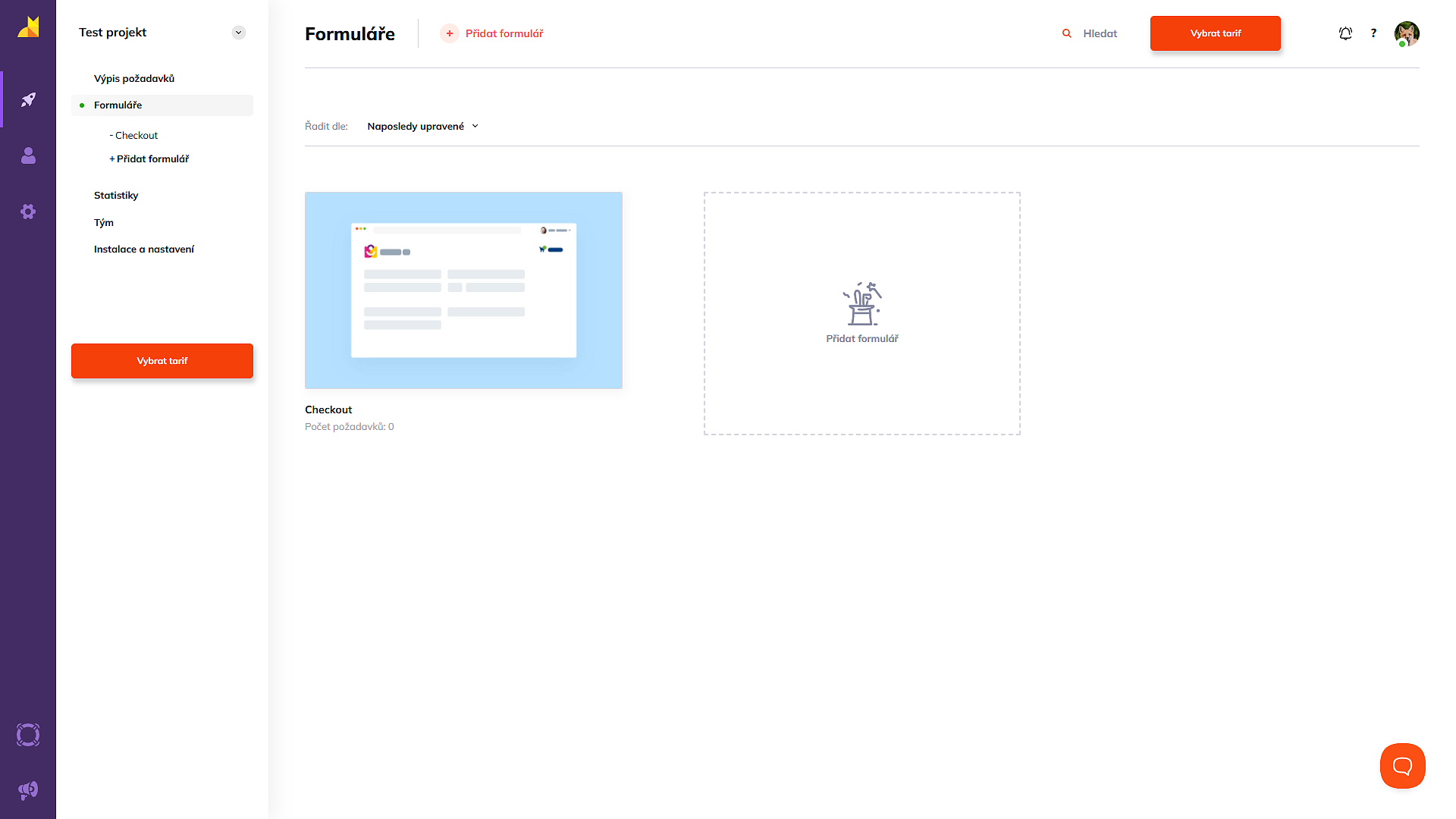
Adding a new form
To add a new form, simply click the Add form button at the top of the screen. Compared to the older version of the application, you now have two ways to integrate Foxentry into your website:
- Launch the interactive configurator on your website: this is the recommended and fastest way, where you select the specific fields you want to validate directly on your website by clicking on them,
- Create a form manually: an advanced option for situations where you know exactly the IDs or classes of your inputs and want to set the rules manually directly in the administration.
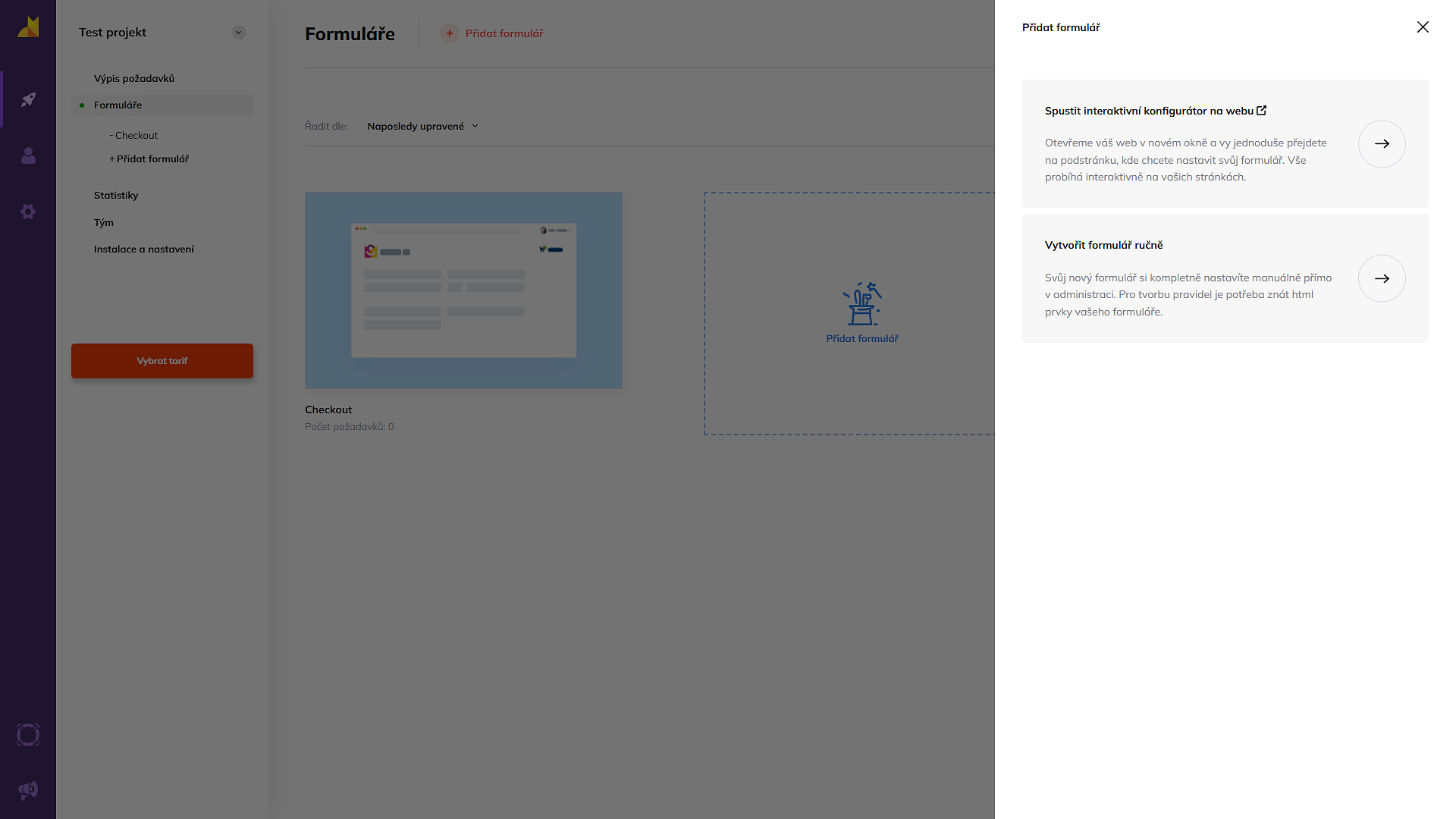
When should you choose the interactive configurator?
Whenever possible! The configurator eliminates errors when entering selectors and saves you the time spent studying the website's source code. It's the most reliable way to achieve functional validation in just a few clicks.
Managing existing forms
You can see all the forms you have created on clear cards. For each one, you'll find basic information about the number of requests and the activation status.
Quick actions for a form
If you click on the three-dot icon in the top right corner of the card, a menu with quick actions will expand:
- Launch configurator: reopens the visual settings directly on your website,
- Edit: redirects you to the manual settings,
- Duplicate: creates an exact copy of the form, which is great when you want to use exactly the same settings for multiple forms on different subpages,
- Delete: permanently removes the form from your project.
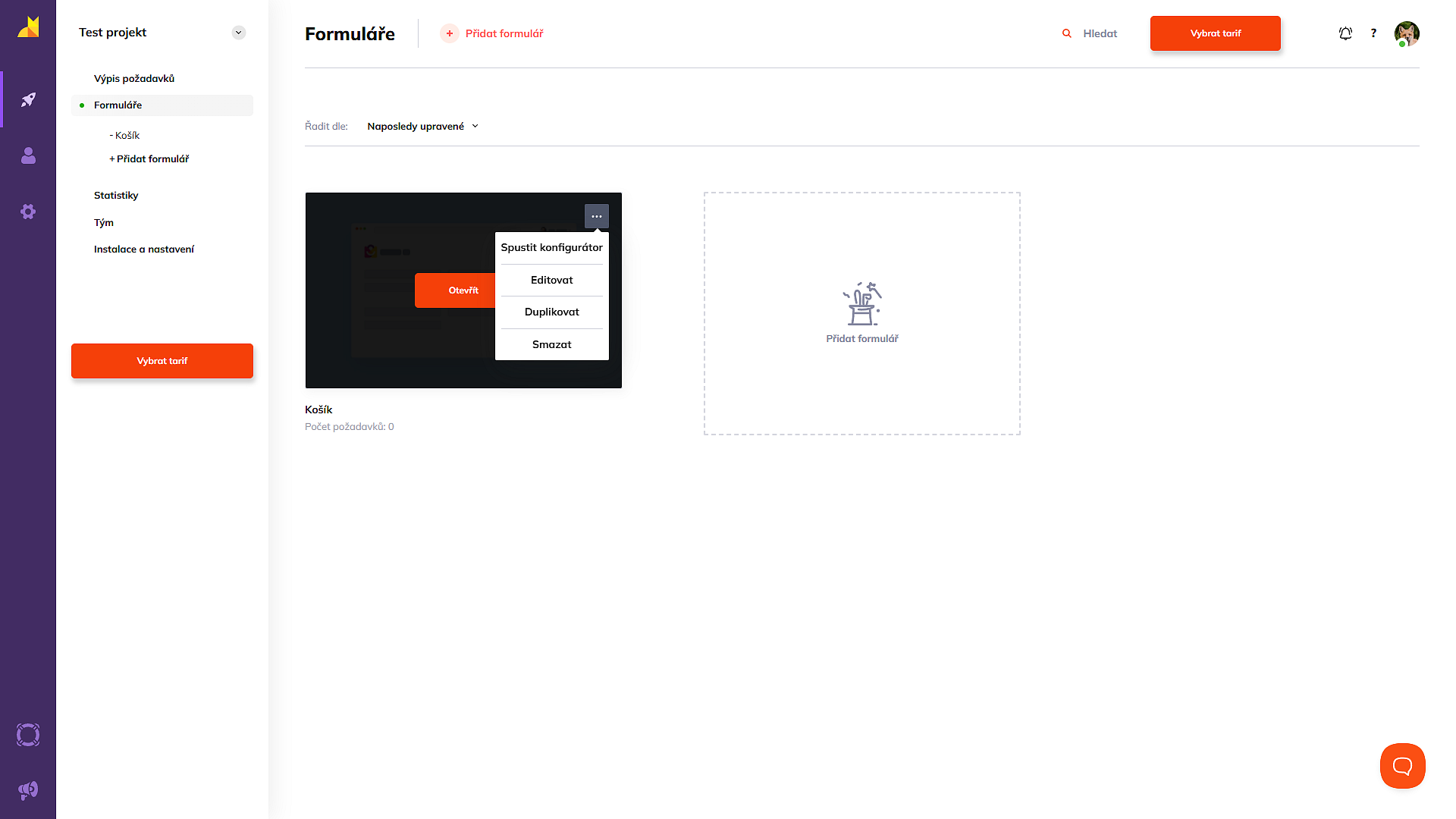
Detailed settings
By clicking on a specific card (or using the Open button), you'll access the detailed settings of that form, where you can manage:
- Validator behavior: setting limits, field requirements, or specific parameters for addresses, emails, phone numbers, and companies,
- Visual style: customizing the appearance of the autocomplete so it perfectly matches your website's design,
- Field mapping: checking and adjusting the connection between Foxentry and the inputs in your form.
We will cover the detailed settings of individual services and technical integration in detail in the following articles in the Installation and Integration section.
Still having trouble? Leave us a note.