

Post in category
- Project Types 💡
- Creating a new project
- List of Projects
- Deleting a project
- Add a member
- 🌐 WEB - Description of the Project Home Dashboard
- 🌐 WEB - Project Settings
- 🌐 WEB - Limits and Enabling Individual Services
- 🌐 WEB - Forms
- 🌐 WEB - Topping Up Your Plan
- 🌐 WEB - Statistics
- ⚙️ API - Description of the Project Home Dashboard
- ⚙️ API - Project Settings
- ⚙️ API - Generating an API Key
- ⚙️ API - Documentation
- ⚙️ API - SDKs
- ⚙️ API - Topping Up Your Plan / Credit
- ⚙️ API - Statistics
List of Projects
The homepage after logging into the Foxentry administration clearly displays all the projects you have access to. Here you can manage, filter, or create new projects. The administration distinguishes two basic types of projects according to the method of integration: Web projects (for web forms) and API projects (for integration via REST API).
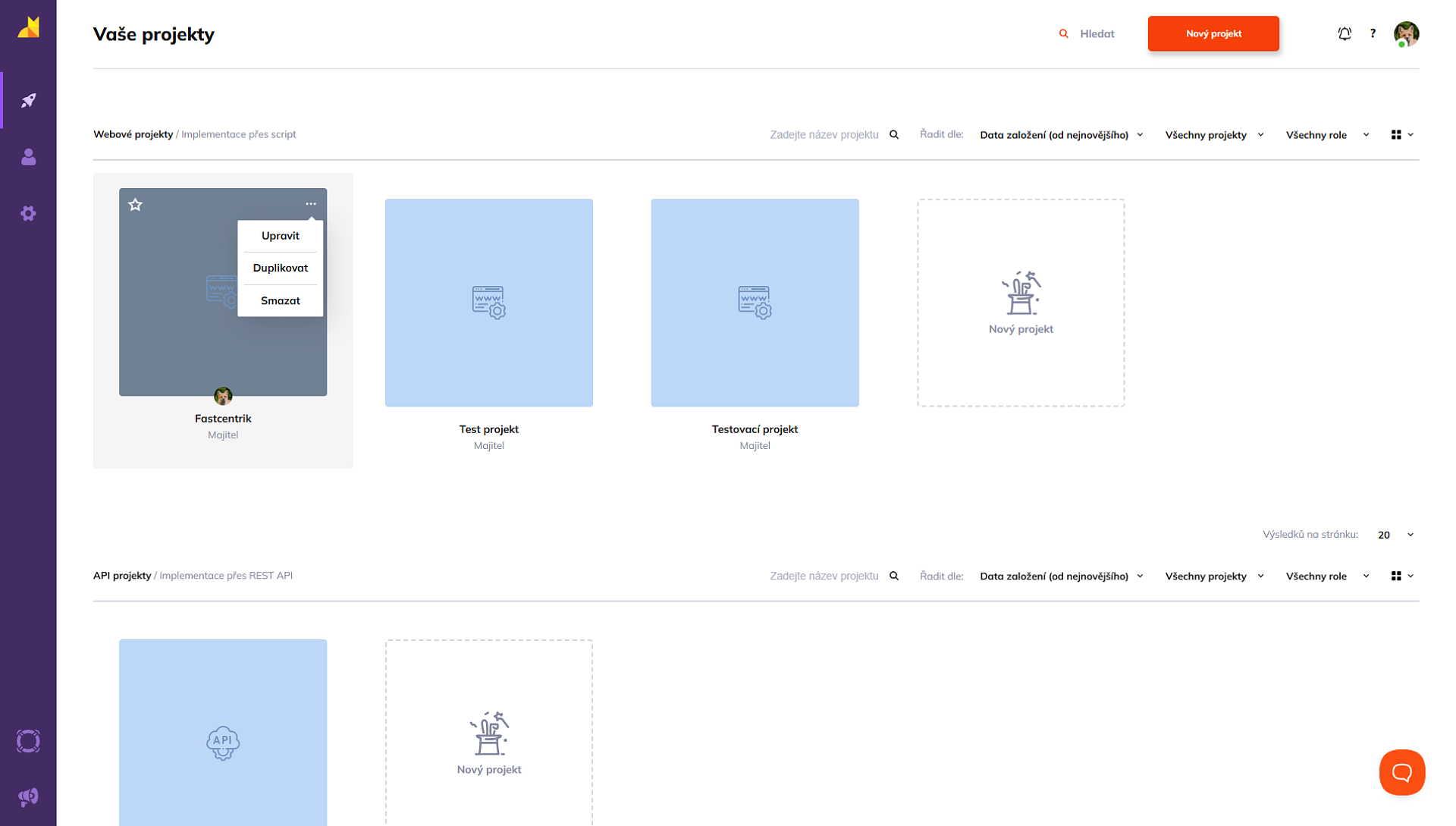
Page elements
At the top of the page you'll find a search field for quickly finding a specific project by name, and the New project button to start the process of creating a new project. The projects themselves are divided into two separate sections (Web and API), with each section having its own set of sorting and filtering tools.
Sorting and filtering
Directly above the project list, you'll find tools to help you keep track, especially if you manage a larger number of projects:
- Sort by: allows you to sort projects, for example, by creation date (from newest/oldest), alphabetically (A-Z/Z-A), or by the number of requests,
- All projects: a filter for displaying all projects, only favorite projects, or projects by payment status (paid/unpaid),
- All roles: allows you to filter projects according to your role in them (Manager, Accountant, Developer, Custom permissions).
Project card and quick actions
Each project is displayed on a separate card that contains the project name and your role in it (e.g., Owner). If you click the star in the top left corner of a project, you add it to your **Favorite Projects**, and it will always be displayed at the top of the list. You'll find quick actions for the project under the three-dot icon in the top right corner of the card:
- Edit: opens the detailed settings of the specific project,
- Duplicate: creates an exact copy of the project,
- Delete: permanently removes the project from your account.
At the bottom of the page, you'll find a setting for the number of projects displayed per page (default is 20).
Still having trouble? Leave us a note.