

Post in category
- Project Types 💡
- Creating a new project
- List of Projects
- Deleting a project
- Add a member
- 🌐 WEB - Description of the Project Home Dashboard
- 🌐 WEB - Project Settings
- 🌐 WEB - Limits and Enabling Individual Services
- 🌐 WEB - Forms
- 🌐 WEB - Topping Up Your Plan
- 🌐 WEB - Statistics
- ⚙️ API - Description of the Project Home Dashboard
- ⚙️ API - Project Settings
- ⚙️ API - Generating an API Key
- ⚙️ API - Documentation
- ⚙️ API - SDKs
- ⚙️ API - Topping Up Your Plan / Credit
- ⚙️ API - Statistics
⚙️ API - Generating an API Key
Creating an API key is the fundamental step for any integration of the Foxentry REST API. The API key is used to authenticate your requests, and without it the services won't work. Every project can have any number of API keys, which lets you, for example, separate access for different developers or for testing and production environments.
Steps to generate a key
To generate a new API key, proceed as follows:
- Go to the Settings of your API project.
- Open the API keys tab.
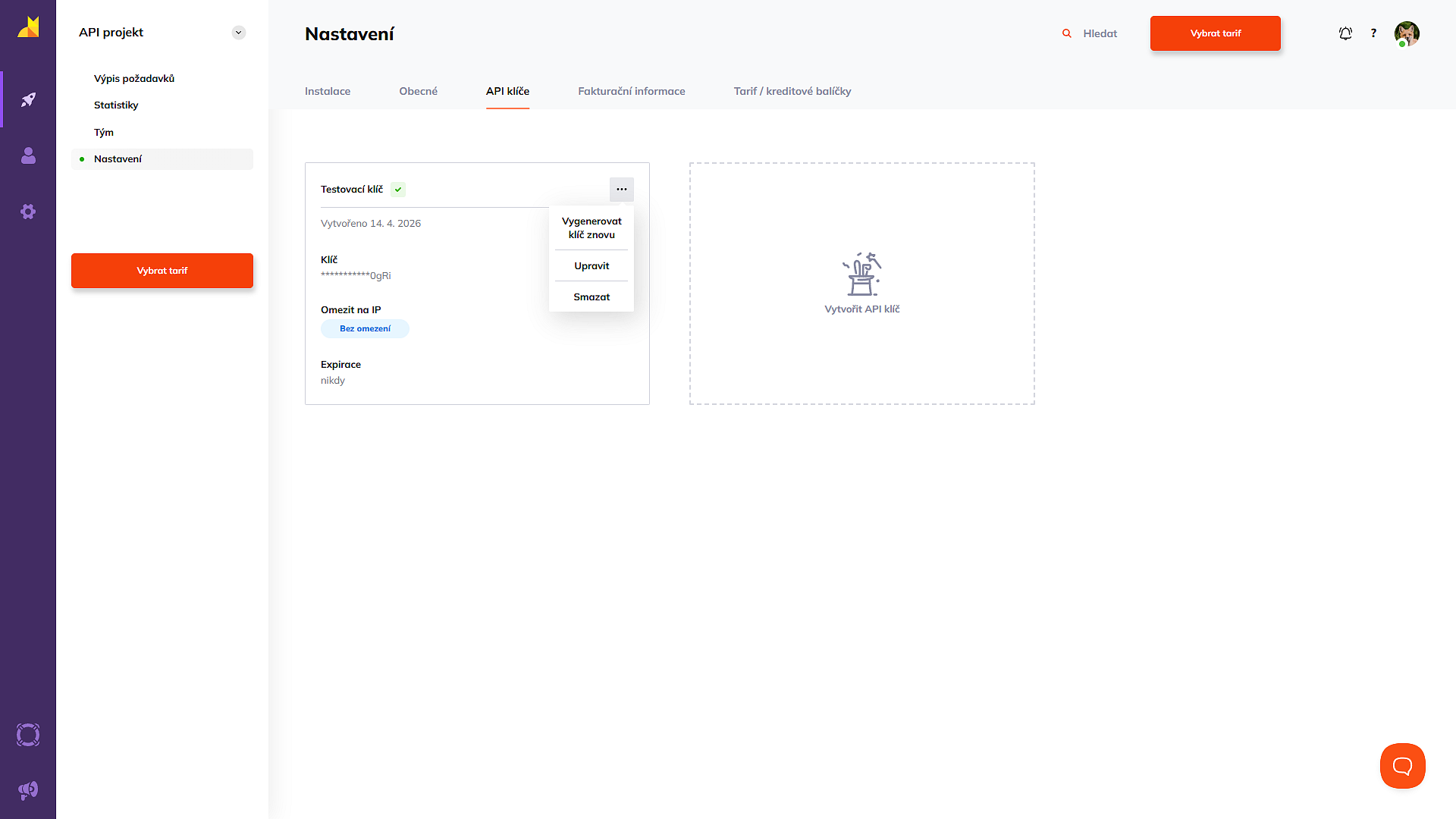
- Click the empty card labeled Create API key. A side panel with a form will open.
- In the side panel, fill in the required details:
- API key name: choose a clear name (e.g. "Production – Website", "Testing – John"), so that you'll know in the future what the key is for,
- Expiration: an optional field to set if you want the key to stop working after a certain period (leave the field empty for unlimited validity),
- Restrict to IP: enter specific IP addresses if you want the key to be usable only from certain servers, which significantly increases security.
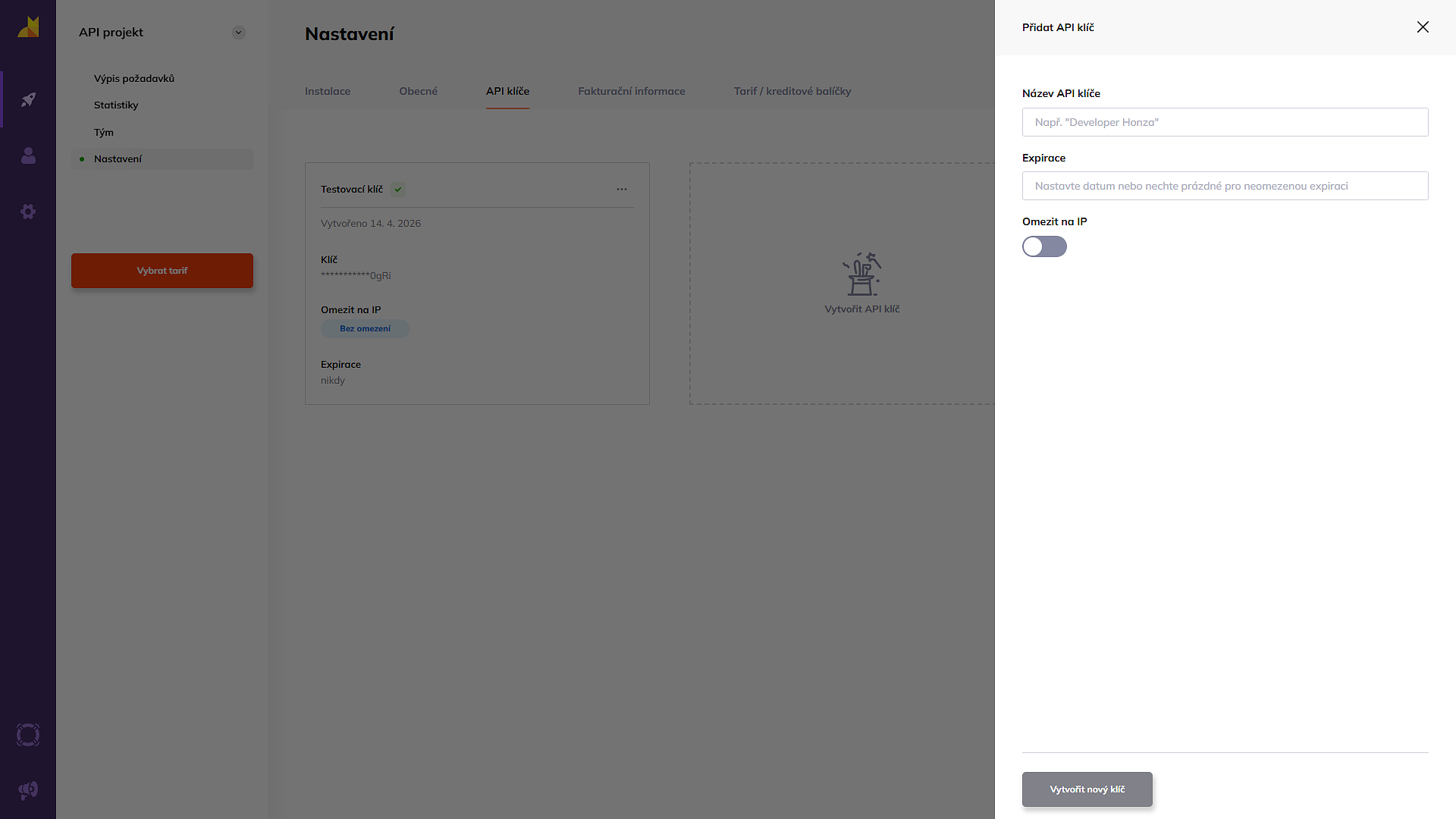
- Click the Create new key button. The key is generated instantly and shown on the card.
Security comes first
Save the newly generated API key somewhere safe. For security reasons, Foxentry shows it in full only once, right after creation. Later, in the administration, you'll only see part of it. If you lose the key, you'll have to generate a new one.
Managing existing keys
On each key's card, you can see an overview of its creation date, the configured IP restriction, and any expiration. Clicking the three dots icon in the top-right corner of the card opens a menu with further actions:
- Regenerate key: invalidates the existing key and generates a new one for that card (use this if you suspect the key has been compromised),
- Edit: lets you change the key's name, expiration, or IP restriction,
- Delete: permanently removes the key, and any API call using this key will immediately stop working.
